Stage 6 tasks
Work through the steps in order. If something breaks, compare your blocks to the video.
Video 2 — Time 01:21Open at 01:21 ↗
How to use the videos (do this every stage):
You cannot watch the whole video and remember every step. Instead: watch ~30 seconds, pause, then build that section in Scratch. Repeat.
- Split your screen so you can see Scratch and the video at the same time.
- Windows: open Scratch and the worksheet/video, then press Windows key + Left Arrow to snap one app to the left. Click the other window to fill the right.
- If you want Scratch bigger: drag the divider so Scratch takes about 2/3 of the screen and the video takes 1/3.
Create the 3 backdrops
- Click the Stage (not a sprite).
- Add three backdrops and rename: start, dead, survived.
Broadcast ‘start’ when the game begins
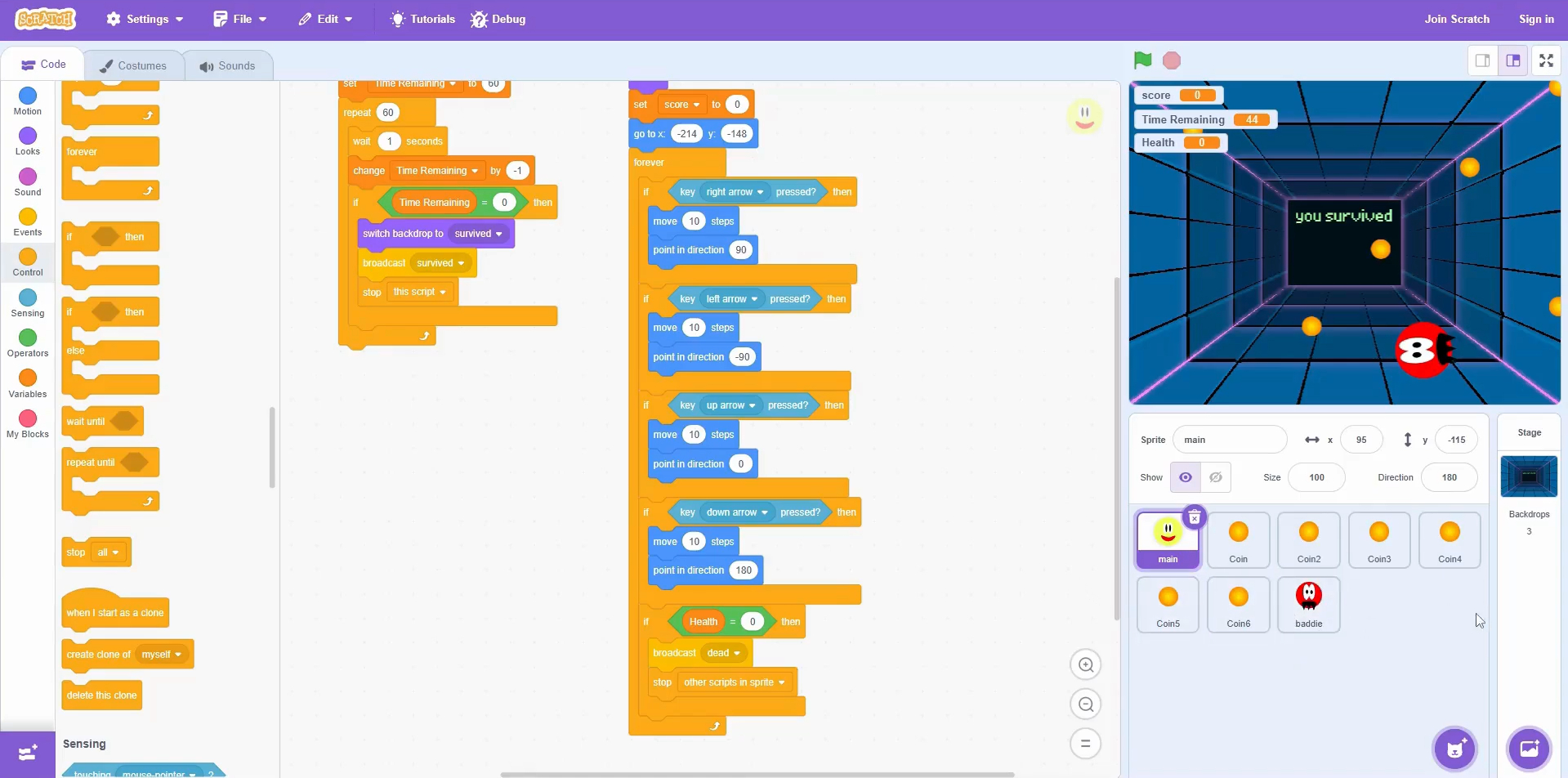
- On Main: when green flag clicked → broadcast start.
Switch screens on broadcasts (Main)
- When I receive dead → switch backdrop dead → hide
- When I receive survived → switch backdrop survived → hide
- When I receive start → switch backdrop start (don’t hide).
Hide coins when dead/survived
- On each Coin: when I receive dead → hide
- When I receive survived → hide
- Copy to all duplicated coins.
Quick check (it works if…)
- Broadcasts switch to the correct backdrop.
- Sprites hide on dead/survived screens.
Extension:
- Add text on backdrops: ‘Press green flag to restart’.
Scratch tips for this stage:
- Backdrops don’t move — make sure you’re editing the Stage, not a sprite.
- Rename backdrops exactly: start, dead, survived (spelling matters).
- Use broadcasts to hide sprites on dead/survived screens so the UI looks clean.