Stage 2 tasks
Work through the steps in order. If something breaks, compare your blocks to the video.
Video 1 — Time 04:11Open at 04:11 ↗
How to use the videos (do this every stage):
You cannot watch the whole video and remember every step. Instead: watch ~30 seconds, pause, then build that section in Scratch. Repeat.
- Split your screen so you can see Scratch and the video at the same time.
- Windows: open Scratch and the worksheet/video, then press Windows key + Left Arrow to snap one app to the left. Click the other window to fill the right.
- If you want Scratch bigger: drag the divider so Scratch takes about 2/3 of the screen and the video takes 1/3.
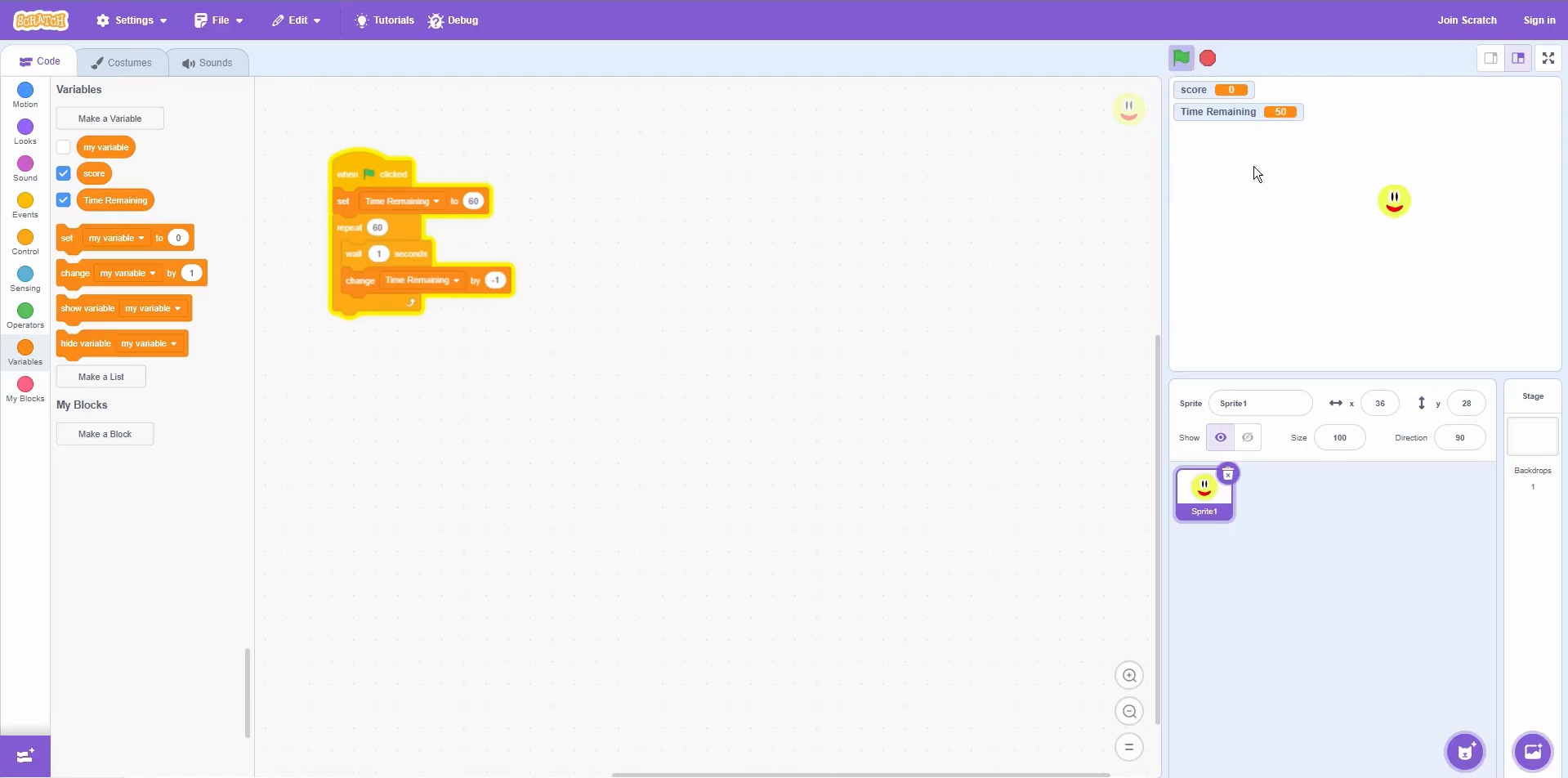
Create the variables
- Variables → Make a Variable → create score.
- Create time remaining.
Build the countdown (on Main)
- Events → when green flag clicked
- Variables → set [time remaining] to 60
- Control → repeat 60
- Inside: wait 1 second
- Inside: change [time remaining] by -1
Run a quick test
- Click the green flag.
- Watch the timer count down.
Quick check (it works if…)
- The timer starts at 60 and counts down to 0.
- It decreases once per second (not too fast / not frozen).
Extension:
- Change it to 30 seconds for testing, then put it back to 60.
Scratch tips for this stage:
- If your timer races to 0 instantly, you’ve probably missed wait 1 second inside the loop.
- Make sure you are changing time remaining (not score).
- Use change by -1 for a countdown (not +1).